
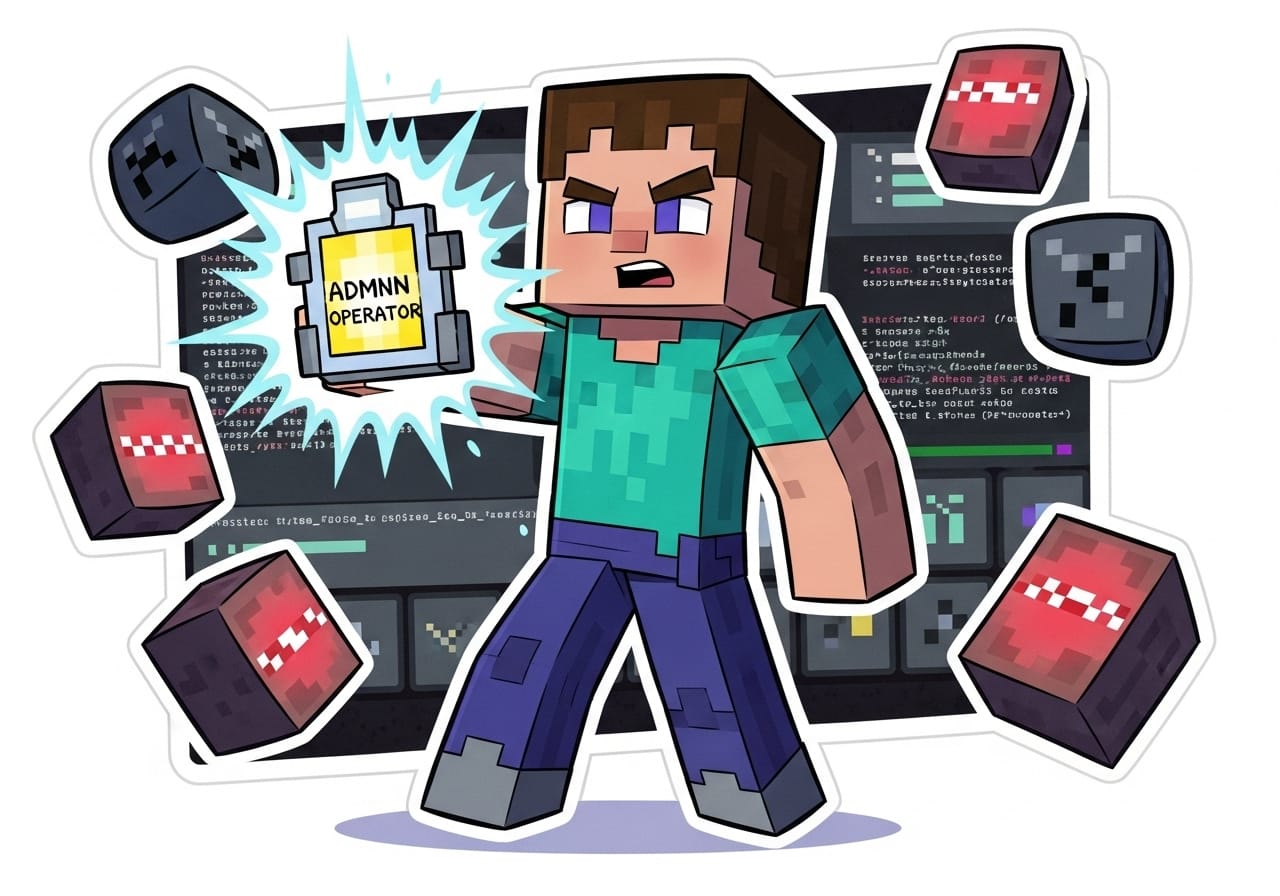
Give yourself the power to rule your Minecraft world, responsibly of course! 👑 Whether you play the vanilla Minecraft Java Edition or run a heavily modded op Minecraft server, understanding OP status is the cornerstone of effortless server management. By learning exactly how to op yourself on a Minecraft server, you unlock the fastest method of opping friends, tweaking server difficulty items, and managing server versions updates without breaking a sweat.
Ever wanted to fly around your server, summon a lightning storm, toggle player game mode settings on the fly, or save your world from chaos? Then you’ll need to become an Operator (OP), the in-game admin who keeps everything running smoothly with a handful of powerful server commands at your disposal. When you master the op command, you can ban griefers, allow trusted friends into creative mode, or even adjust server difficulty with a single key-press.
In this guide, we’ll walk you through exactly how to get OP on a Minecraft server, whether you’re doing it through the server console or directly in-game chat. We’ll also share pro tricks for safer kicking & banning players, explain operator permissions by level, and show you how to avoid common mistakes like accidentally giving your friend absolute chaos powers by typing the wrong op username.
🧠 What Does “OP” Mean in Minecraft?
In Minecraft, being OP (short for Operator) means you have admin-level permissions—think of it as having the keys to the entire server running under your name.
With OP powers, you can:
- Run any server command (like /gamemode, /tp, or the essential /op <username> command) and instantly see the effect once you press Enter.
- Change world settings such as updating server difficulty, toggling game mode updating, or performing an impromptu /time set day.
- Manage players—from kicking, banning players, or pardoning them, to promoting a player operator by simply typing the right command op.
- Basically, become the operator server overlord, wielding every permission, from op permissions to plugin management (within reason 😅).
There are different OP levels too, from Level 1 (basic commands) up to Level 4 (full, unrestricted access). Most server owners go straight for Level 4 to grant themselves and their staff maximum operators ops access.
⚙️ How to OP Yourself Using the Server Console
If you have access to your server control panel or console, this is the fastest method of opping yourself. A console op bypasses in-game limitations and is perfect if you’re locked out or still setting up.
- Log in to your ChipHead server panel (or whichever host you’re using). Make sure the server is running the correct server version first—this avoids unexpected server version updates interrupting the process.
- Navigate to your Console tab to view the live command feed.
- Type op <your-username> (for example, op SteveTheBuilder) into the console, then press Enter. This single, precise type command op action grants you operator status instantly.
- The console returns a success message indicating that the username player op has been added to the ops.json file, confirming your new operator permissions.
- Jump back into your Minecraft world, and you’ll notice you can now switch to creative, run /effect commands, or carry out mode updating server tasks without restrictions. ⚡
Pro tip: If your op username has spaces or special characters, wrap it in quotes, or copy-paste it from the user profile list to avoid mistakes. If you ever need to move OP status to another account, simply use deop <username> followed by op username replacing with the new player.
🕹️ How to OP Yourself In-Game (With Permissions)
If you’re already an operator or have been granted limited operator permissions by the owner, you can use in-game chat to op other players or yourself without leaving the action.
- Open the chat window (press T by default).
Type /op <playername>—sometimes called the op command—and press Enter.
- Example: /op Alex, which immediately sets operator op player Alex so they can run server commands too.
- You’ll receive a confirmation message showing that the player now enjoys ops access.
To remove OP (handy if you need to curb misuse or demote someone), just do the reverse:
/deop <playername>
You can also check who is currently OP by typing /ops list. Keeping an eye on your operators ensures you maintain a balanced team and prevents accidental griefing.
🚫 Common Mistakes (and How to Avoid Them)
Even experienced admins occasionally stumble. Here are the frequent pitfalls when opping players server-side, plus solutions:
❌ Not having console access: Only a server operator with the right access can grant new OPs, so confirm you’re logged into the owner account or have elevated rights in the control panel.
❌ Typos in usernames: Minecraft is case-sensitive, so double-check every character before you enter op. A misplaced capital or missing underscore in the command op username means nothing happens.
❌ Accidental chaos: Giving OP to the wrong person can spawn TNT rain, instant changing player game settings, or wild server difficulty tweaks. Always verify who you’re promoting, and consider setting them at OP Level 2 rather than Level 4.
❌ Forgetting to remove OP: After a build session, remember to deop guests so they can’t alter the world later. Good housekeeping keeps your op server tidy.
💡 Bonus Tip: Managing Permissions the Smart Way
Instead of giving everyone full OP permissions, you can use powerful permissions plugins like:
- LuckPerms – perfect for granular operator permissions control, scheduled rank changes, and automatic player game mode limits.
- PermissionsEx – great for tiered roles, from helper to moderator, and for setting specific limits on server commands such as kicking, banning players.
By delegating via plugins, you eliminate the need to type op username repeatedly, reduce risk, and allow only essential operators ops access. It’s a safer, scalable approach when you host a large community on your op Minecraft server.
🎉 Wrap-Up: Be the Responsible Ruler
And there you have it. Now you know how to OP yourself in Minecraft like a pro, whether you’re using your ChipHead op console or the in-game chat. With these techniques, you can perform game mode updating, handle updating server difficulty, or even stop and restart the server without breaking immersion.
Remember: wield that newfound power wisely, keep backups handy, and always respect your community. When used correctly, OP status transforms you from casual player to legendary server operator, ensuring smooth adventures for everyone who logs in.
Ready to start your own Minecraft journey and deploy these tips immediately?
👉 Get your server with ChipHead today and take full control of your blocky world! 🌟