Why blueprints matter 🧠
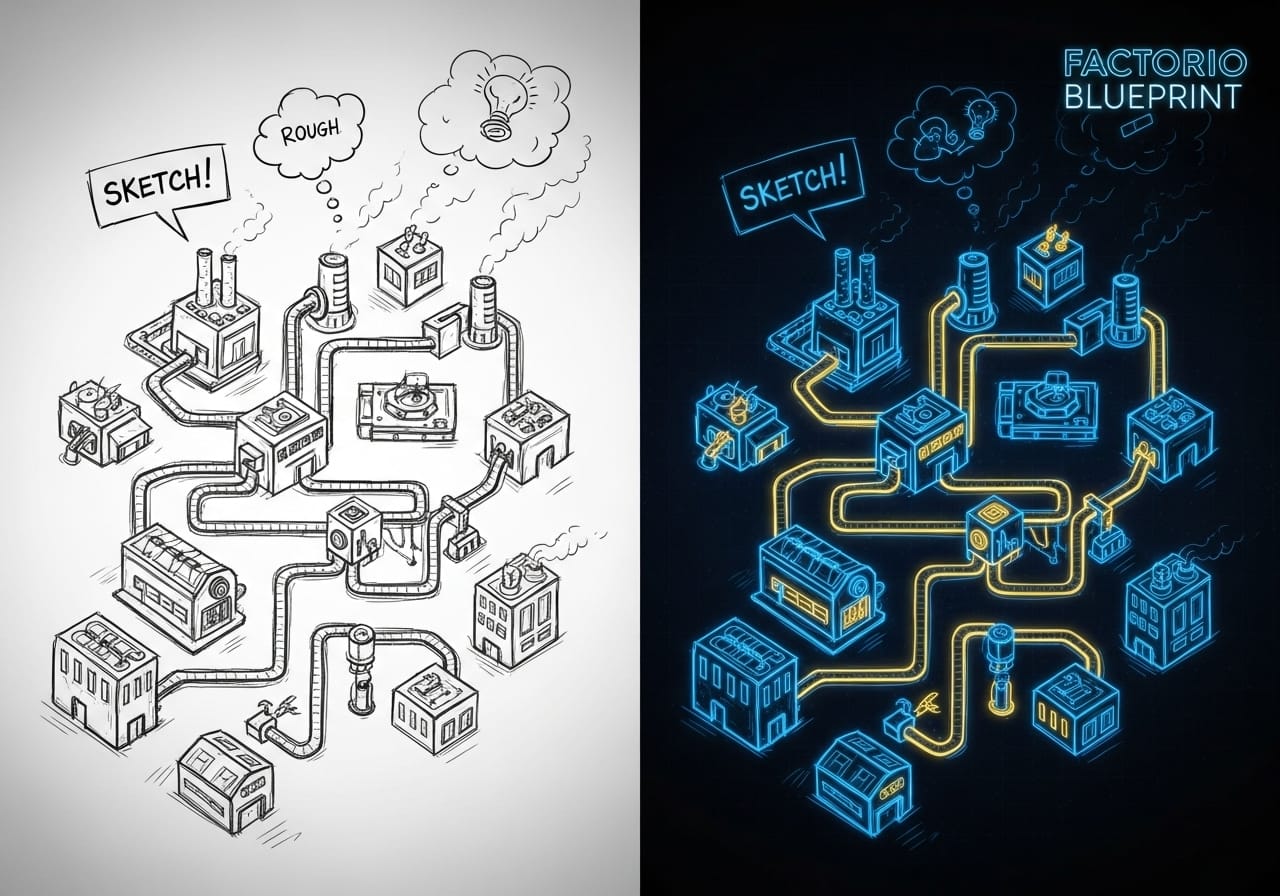
In Factorio, blueprints are the DNA of your factory. They let you save, share, and instantly rebuild complex setups - from smelting lines to science hubs.
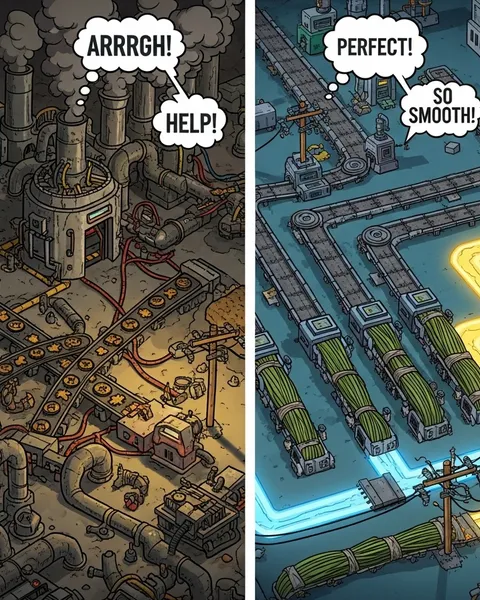
On servers, blueprints transform chaos into coordination. Instead of every player building their own spaghetti base, you can align the whole team around modular, efficient designs. The result? Faster scaling, cleaner layouts, and a happier team.
Step 1: Understanding blueprints 🧾
A blueprint saves the layout of entities, machines, and wiring so you can place it again later.
- Blueprint: A single layout (like a smelting line).
- Blueprint book: A collection of related designs.
- Deconstruction planner: The opposite, removes selected entities.
💡 Pro tip: You can export any blueprint as a text string to share between servers or players. It’s as easy as copy and paste.
Step 2: How to create your own blueprint ✏️
- Open your inventory (
E) and click the Blueprint icon. - Drag to select the area you want to save.
- Name your blueprint and give it an icon for easy reference.
- Save it to your Blueprint Library, accessible across saves and servers.
🧱 Tip: Organise by category - “Smelting”, “Circuits”, “Science”, “Trains”. It’ll save hours later.
Step 3: Sharing blueprints in multiplayer 👥
Blueprints are automatically shared between connected players if you enable your Shared Blueprint Library.
For public servers or larger groups:
- Create a dedicated “Blueprint Book” for team builds (e.g. Science Setup, Main Bus, Power).
- Place it in a shared storage chest for everyone to copy.
- Communicate in chat or Discord which blueprints are approved for use, consistency is key.
🧠 Pro tip: Keep a “server standards” book so new players know which designs to follow.
Step 4: Using community blueprints 🌐
The Factorio community has an incredible collection of pre-made blueprints. You can find them on the Official Blueprint Library or community hubs.
Popular categories include:
- ⚙️ Smelting Arrays
- 🔬 Science Production
- 🚆 Train Stations and Intersections
- 🔋 Power Generation (Steam, Solar, or Nuclear)
- 🪨 Mining Outposts
Just copy the blueprint string, import it into your library, and you’re ready to build.
💡 Tip: Test community blueprints in a creative sandbox world before using them on your live server.
Step 5: Keeping server blueprints tidy 🧹
Too many overlapping designs can confuse players and slow collaboration.
- Limit shared blueprint uploads to approved sets.
- Clear old or experimental books every few weeks.
- Label everything, “Main Bus v1.2” is better than “bus thingy”.
- Encourage players to version their designs (“Oil Refinery v3”, “Science Loop Final”).
🧠 Bonus: Use your server’s shared storage as a “blueprint depot” where players can drop and update designs safely.
Step 6: Combine blueprints for mega-bases 🏭
Once your team masters modular design, link blueprints together for massive, self-sustaining systems:
- Production block → Train station → Storage hub
- Science build → Power grid → Defence perimeter
Blueprinting these modules means new worlds or servers can be launched and scaled almost instantly - ideal for community events or co-op speedruns.
Step 7: Troubleshooting blueprint issues 🧩
Sometimes blueprints misbehave, especially with mods.
- If a blueprint fails to place, check if it includes modded entities that aren’t installed on the server.
- Verify permissions, some servers restrict building in specific zones.
- Use the Editor Mode (admin only) to manually fix layouts that misalign after terrain changes.
💡 Tip: Always sync your mod list before sharing blueprints between servers, mismatched mods cause invisible or broken entities.
Step 8: Automate blueprint placement (advanced) 🤖
If you’re running big modded servers, you can use tools like Recursive Blueprints to automate building.
These allow robots to place new blueprints based on triggers, letting your base expand autonomously - perfect for creative or testing environments.
🚀 Pro tip: Automating large-scale blueprints looks impressive, but watch UPS usage - performance can dip during heavy construction phases.
Final thoughts 💭
Blueprints are the backbone of collaborative Factorio play. They turn complex engineering into teamwork and transform chaotic multiplayer sessions into perfectly synchronised production lines.
Start with small shared designs, build a team library, and keep refining your layouts. Over time, you’ll develop your own “signature factory style” that new players instantly recognise.
And if you’re hosting your world on ChipHead, your blueprints will run smoother than ever - fast servers, clean saves, and plenty of room for your biggest builds. ⚙️