Why tuning matters ⚙️
Running your own 7 Days to Die server isn’t just about hosting, it’s about creating the ideal survival experience. Good tuning helps:
- Keep gameplay smooth and reduce lag
- Make difficulty feel balanced and fair
- Prevent crashes or performance drops as your world grows
Whether you’re managing a small group of friends or a bustling multiplayer world, fine-tuning your setup can make the difference between frustration and flow.
Key areas to tune 💡
1. Hardware & environment
Even perfect settings can’t save a server that’s underpowered. Make sure your setup has:
- Strong CPU and enough RAM - modded servers need extra resources
- Fast SSD or NVMe storage for quicker world saves and chunk loads
- Reliable network connection with low latency
- Server monitoring tools to keep an eye on CPU, RAM, and I/O performance
If you’re using a hosting platform like ChipHead, your hardware and bandwidth are already optimised for performance, but resource tracking is still worth doing.
2. Fine-tuning serverconfig.xml 🧰
This file controls the core behaviour of your server. Focus on the following settings for performance and balance:
| Setting | Why it matters | Recommended starting point |
|---|---|---|
ServerMaxPlayerCount | Too high causes lag; too low limits community | 20–30 players |
GameDifficulty | Defines base challenge | 2 (Nomad) or 3 (Warrior) |
DayNightLength | Controls pacing | 60 minutes per full day |
LandClaimSize / LandClaimExpiryTime | Manages build protection | 41 / 7 days |
💡 Tip: Start conservative, then scale up. For example, keep the player limit low until you confirm your performance headroom.
3. Managing spawns & entity limits 🧟♂️
Too many zombies or animals can crush server performance. Consider:
- Increasing
MaxSpawnedZombiesandMaxSpawnedAnimalsgradually, small increments let you find your sweet spot - Disabling FPS lock on the dedicated server if your hardware can handle more entities
- Testing horde night performance before adding more spawns
Example balanced values:
<property name="MaxSpawnedZombies" value="450"/>
<property name="MaxSpawnedAnimals" value="300"/>
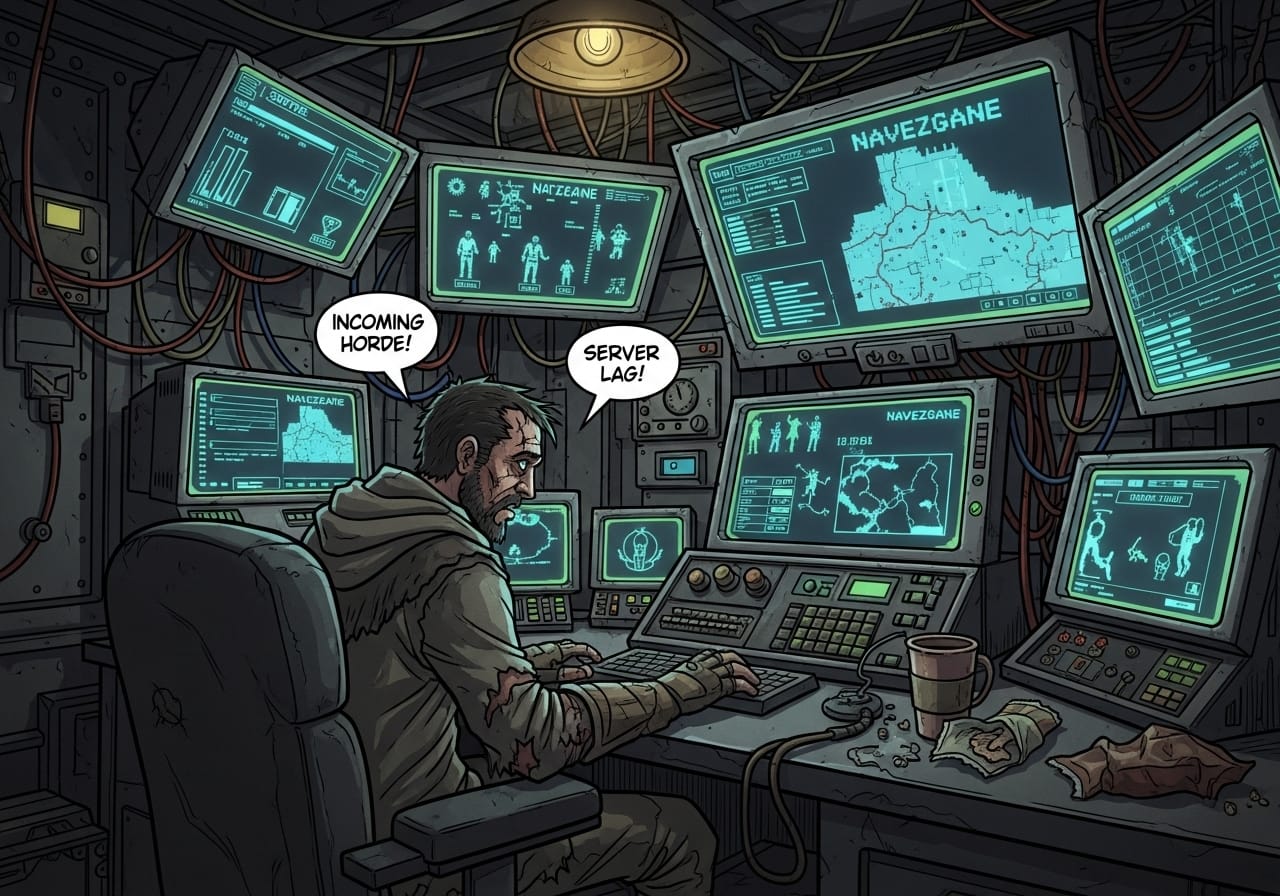
If your CPU usage climbs above 80% during hordes, reduce those numbers slightly.
4. Modded servers & map size 🧩
Mods and large maps can transform the experience but they also demand more power.
- Keep mods updated and compatible with your game version
- Avoid using too many heavy world-generation or overhaul mods together
- Limit your world size if performance dips, or assign more RAM to your server
🧠 Pro tip: Test new mods on a local instance first before deploying them live.
5. Performance tweaks & housekeeping 💾
Simple habits keep your server stable:
- Back up world and player data regularly
- Keep both the base game and mods updated
- Track server performance over time - CPU, memory, and entity count trends reveal when it’s time to optimise
- Revisit your settings after major patches; new updates often alter performance dynamics
Example “Balanced PvE” Configuration ⚔️
Here’s a sample setup ideal for a mid-sized community server:
<property name="ServerMaxPlayerCount" value="25"/>
<property name="GameDifficulty" value="3"/>
<property name="DayNightLength" value="60"/>
<property name="LandClaimSize" value="41"/>
<property name="LandClaimExpiryTime" value="7"/>
<property name="MaxSpawnedZombies" value="450"/>
<property name="MaxSpawnedAnimals" value="300"/>
✅ Monitor CPU and RAM during peak times
✅ Adjust difficulty or spawn rates based on player feedback
✅ Run a backup before every major change
Final thoughts 💭
Tuning your 7 Days to Die server isn’t a one-time job, it’s an ongoing process that evolves with your player base and updates. By staying proactive with your settings, monitoring performance, and adjusting carefully, you’ll keep your world fun, balanced, and lag-free.
If you’re hosting with ChipHead, you already have the solid foundation you need. All that’s left is to tweak, test, and enjoy your perfectly balanced apocalypse. 🧟♀️