Why optimisation matters ⚙️
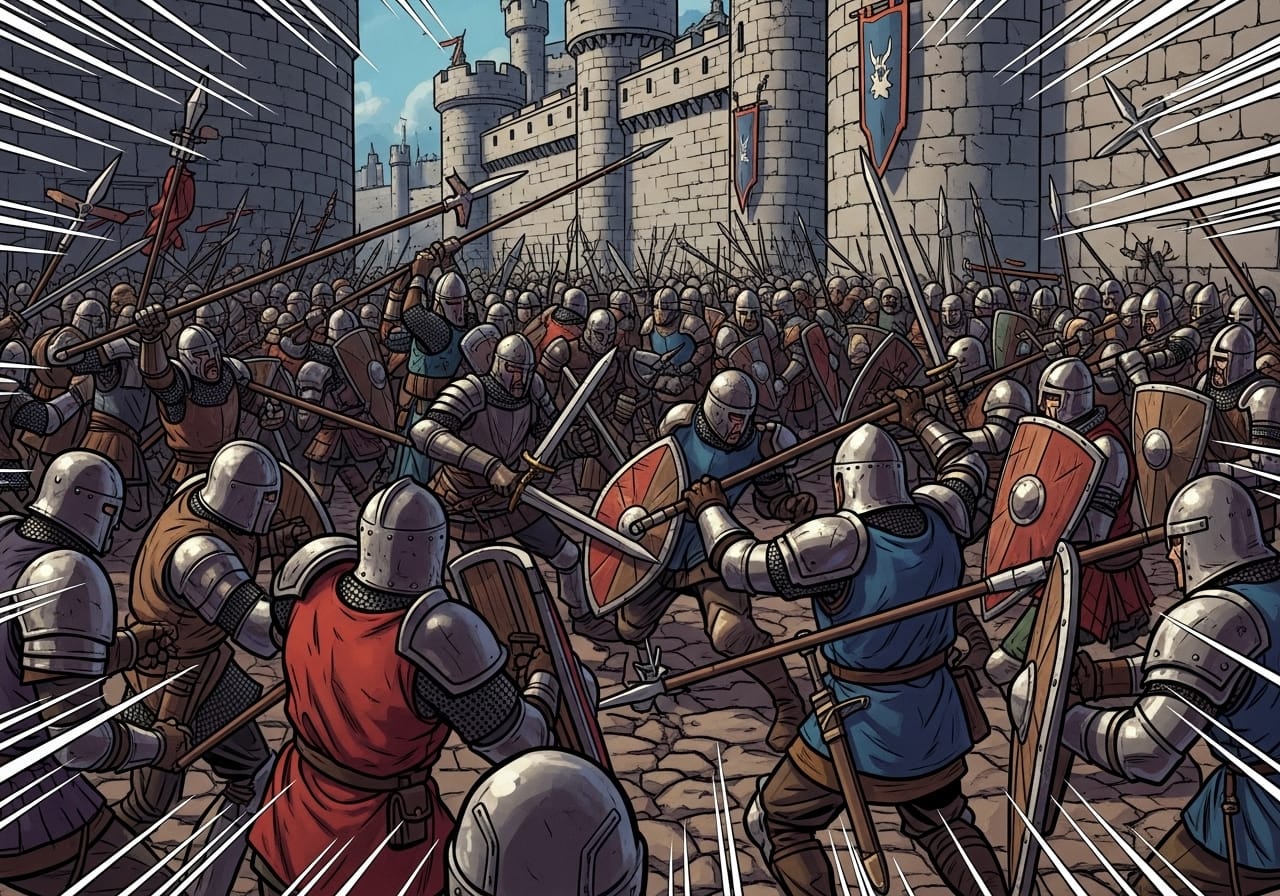
Mordhau can get chaotic, hundreds of soldiers, firepots flying, arrows whistling, and siege engines crashing through walls. It’s glorious, but it can also hammer your frame rate if left untuned.
With a few smart tweaks, you can make battles smoother, boost FPS, and keep your performance consistent, whether you’re duelling in a courtyard or storming a castle.
Step 1: Check your hardware 💻
Mordhau is CPU-heavy and benefits most from strong single-core performance.
✅ Recommended setup:
- CPU: 3.5 GHz+ quad-core or better
- GPU: GTX 1660 / RX 580 or above
- RAM: 16 GB minimum
- Storage: SSD or NVMe drive for faster load times
💡 Tip: Lower-tier CPUs can bottleneck if you run too many background apps, close browsers and launchers before starting the game.
Step 2: Optimise graphics settings 🎮
Small changes can give huge performance gains without sacrificing visuals.
| Setting | Recommended | Why |
|---|---|---|
| Resolution | 1080p | Best balance of clarity and FPS |
| V-Sync | Off | Reduces input lag |
| Anti-Aliasing | FXAA | Minimal visual loss, big FPS gain |
| Shadows | Medium or Low | High shadows eat GPU power |
| Effects Quality | Medium | Keeps explosions smoother |
| View Distance | 70–80% | Increases performance in sieges |
| Motion Blur | Off | Adds delay to visual clarity |
🧠 Pro tip: Keep Texture Quality high, it barely affects FPS but helps visuals massively.
Step 3: Edit your config files ⚙️
For finer control, tweak Mordhau’s config settings manually.
Find them in:
C:\Users\<YourName>\AppData\Local\Mordhau\Saved\Config\WindowsClient
Open Engine.ini and add:
[SystemSettings]
r.Streaming.PoolSize=2048
r.ViewDistanceScale=1.0
r.ShadowQuality=2
r.EffectsQuality=2
r.PostProcessQuality=1
💾 Tip: Adjust r.Streaming.PoolSize based on VRAM, 2048 for 4GB cards, 4096 for 8GB+.
Step 4: Limit background usage 🌐
Network and CPU load both affect smoothness.
- Close browser tabs, downloads, or voice chat overlays.
- Use wired Ethernet for stable connections.
- Disable cloud sync while playing.
- Set Mordhau to High Priority in Task Manager.
🎯 Pro tip: Disable Steam Overlay, it can cause frame hitches in long sessions.
Step 5: Monitor your temperatures 🌡️
Overheating can throttle your hardware mid-fight.
- Use tools like MSI Afterburner or HWMonitor.
- Keep CPU temps under 80°C and GPU under 85°C.
- Clean dust from fans and cases regularly.
🔥 Bonus: Cap your FPS at 120 to balance performance and heat output.
Step 6: Server-side optimisation 🧰
If you host a server, performance settings matter just as much.
- Set MaxSlots to 32–48 for stability.
- Restart every 8–12 hours to clear memory build-up.
- Keep Workshop mods under 5 active at once.
- Use SSD storage for faster map rotation.
- Limit AI in Horde mode, bots can crush CPU usage.
💡 Tip: With ChipHead, all of this is automated, restarts, backups, and mod syncing keep servers stable with zero manual input.
Step 7: Update drivers and BIOS 🧠
New GPU drivers often bring FPS improvements.
- Update through NVIDIA/AMD software every 1–2 months.
- Keep your motherboard BIOS current, stability updates can reduce micro-stutter.
- Reinstall DirectX or Visual C++ Redistributables if performance suddenly drops.
💬 Pro tip: After driver updates, restart your PC to clear shader cache and avoid early lag.
Step 8: Adjust your resolution scale 🔍
If you’re struggling for frames on older hardware, reduce the Resolution Scale in settings.
- 90% resolution gives roughly a 10–15% FPS boost.
- 80% still looks good at 1080p but saves GPU load.
🎯 Tip: Don’t drop below 70%, you’ll start noticing visual blur.
Step 9: Manage Workshop content 🧩
Mods are brilliant but can slow startup and load times.
- Unsubscribe from unused Workshop items.
- Clear cache regularly in:
\Steam\steamapps\workshop\content\629800 - Avoid running multiple heavy mods together.
🧠 Pro tip: Keep one “core collection” of stable mods for regular play, and a separate one for testing new content.
Step 10: Restart and refresh regularly 🔄
Even well-optimised games degrade after long sessions.
- Restart Mordhau every 3–4 hours to refresh memory.
- Clear shader cache once a month.
- Reboot your PC before big multiplayer events.
💾 Bonus: Stable sessions mean fewer disconnects and smoother melee timing.
Final thoughts 💭
Mordhau may be intense, but it runs beautifully when properly tuned. By balancing graphics, monitoring performance, and keeping your system clean, you’ll enjoy buttery-smooth swordplay even in full-scale sieges.
If you’re hosting your own server with ChipHead, you’ll benefit from powerful hardware and automatic maintenance, so every duel, siege, and skirmish runs flawlessly. ⚔️