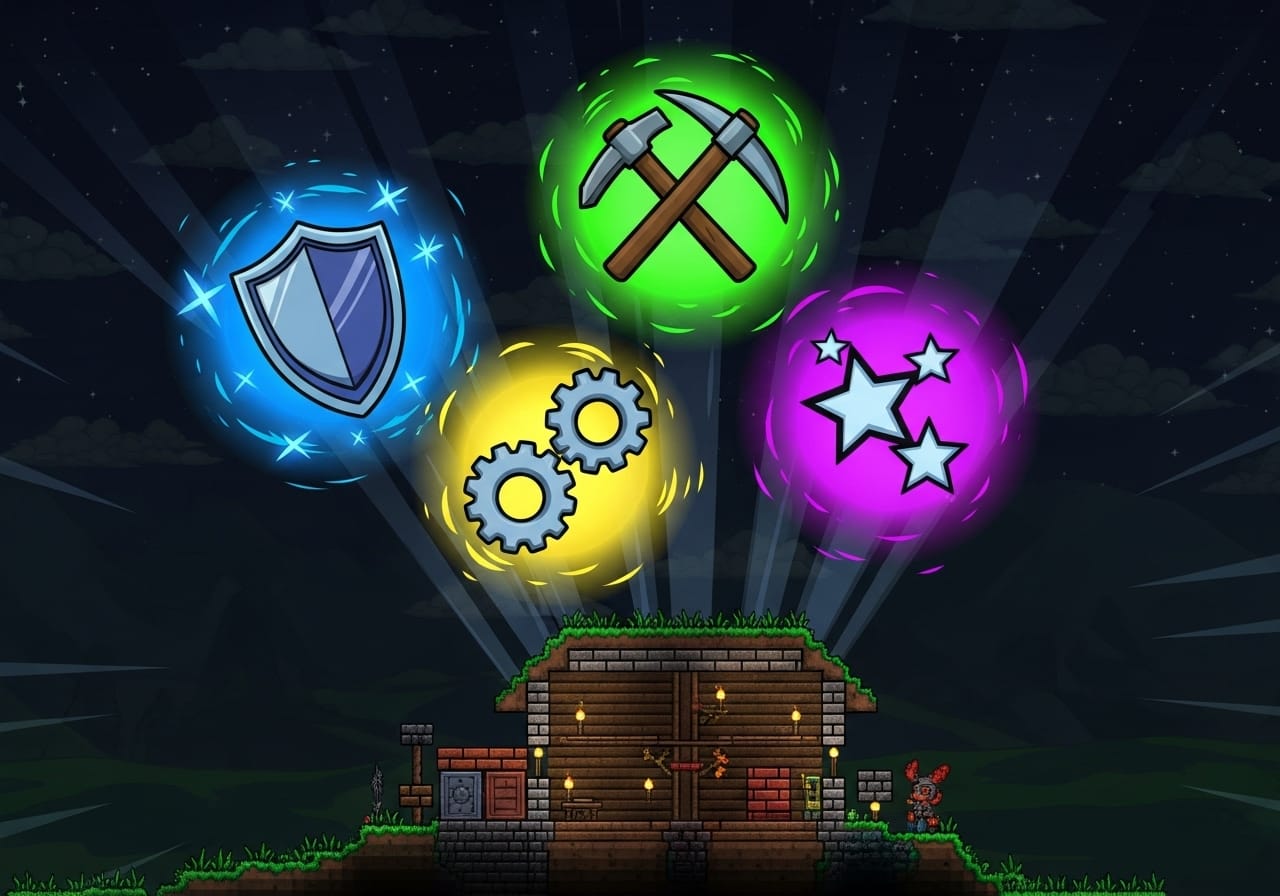
Take your Terraria server management to the next level with powerful plugins and precise permission control.
Once you’ve installed TShock, you already have one of the best server management tools for Terraria. But what really makes TShock shine is how flexible it is. With plugins, you can automate tasks, add new commands, and create a safer and more enjoyable multiplayer experience.
This guide will show you how to set up plugins and permissions in TShock so you can run your Terraria server like a pro.
🧠 What Are Plugins and Permissions?
Before we dive in, here’s a quick overview:
- Plugins are add-ons that extend TShock’s functionality. You can add features like teleport commands, automatic backups, or even mini-games.
- Permissions control what players and admins can do. This keeps your server secure and organised.
Together, these systems give you full control over your world, from moderation to gameplay customisation.
🔧 Step 1. Locate Your TShock Plugins Folder
When you first install TShock, it automatically creates a Plugins folder inside the server directory.
To find it:
- Open your main TShock server folder.
- Look for a folder named ServerPlugins or Plugins.
- This is where you’ll place any new plugin files (.dll files).
Pro tip: Always make a backup of your server before adding or removing plugins.
🧩 Step 2. Install a Plugin
Installing plugins is quick and easy.
- Download your desired plugin from the official TShock forums or GitHub.
- Make sure it matches your current TShock version.
- Place the downloaded .dll file into your Plugins folder.
- Restart your server to load the plugin.
If the plugin loads correctly, you’ll see confirmation messages in your server console.
⚙️ Step 3. Popular Plugins to Try
Here are a few reliable plugins that most servers use:
- AutoBroadcast – Sends automated messages to your players (useful for rules or event reminders).
- Region Restore – Automatically resets areas after use, perfect for PvP arenas or events.
- VoteReward – Rewards players for voting on your server listing.
- Essentials Plus – Adds dozens of useful admin and utility commands.
- AutoSave – Automatically saves your world at set intervals to prevent data loss.
These plugins can make your server smoother, safer, and more engaging for players.
🛡️ Step 4. Understanding Permission Groups
TShock uses a group-based permission system. Each group has its own set of permissions that control what players in that group can do.
Default groups:
- superadmin – Full access to all commands.
- admin – General administrative commands.
- default – Regular players with basic access.
- guest – Unregistered users with limited permissions.
You can edit these groups or create new ones for moderators, builders, or VIPs.
🧾 Step 5. Editing Permissions
Permissions can be managed using commands or by editing the configuration files directly.
Option 1: Using Commands
In the server console or in-game (logged in as an admin), use:
group addperm <groupname> <permission>
Example:
group addperm moderator tshock.tp
This gives the “moderator” group teleport command access.
To remove a permission:
group delperm <groupname> <permission>
Option 2: Editing the Permissions File
- Open the tshock/groups.json file.
- Locate the group you want to modify.
- Add or remove permissions manually, then save.
- Restart your server for changes to apply.
Pro tip: Keep a copy of your groups.json file before editing in case something breaks.
⚔️ Step 6. Assigning Players to Groups
Once your permissions are ready, assign players to the appropriate groups.
Use the following command in the console or in-game:
user group <username> <groupname>
Example:
user group Alex moderator
This moves the player “Alex” to the moderator group and gives them the assigned permissions.
To check their group:
user info <username>
🧠 Step 7. Fine-Tuning Security
Good permission management keeps your server secure. A few quick tips:
✅ Only give superadmin rights to trusted users.
✅ Review permissions regularly, especially after updates.
✅ Use whitelists or passwords for private servers.
✅ Disable unused commands to reduce abuse risks.
Keeping a clean permission setup ensures smooth gameplay and fair moderation.
🪙 Step 8. Updating or Removing Plugins
When updating or uninstalling a plugin:
- Stop your server.
- Remove or replace the .dll file in your Plugins folder.
- Restart your server.
If a plugin causes errors, check your server console log. It usually provides details about which plugin failed and why.
🎮 Final Thoughts
Plugins and permissions are what make TShock truly powerful. They let you build a custom Terraria server that fits your style, whether it’s a friendly co-op world or a massive public adventure.
Once you’ve mastered setup and permissions, you’ll spend less time troubleshooting and more time playing.
👉 Host your Terraria server with ChipHead and unlock full control of your world today. 🌟